
If you’re a graphic designer or you’ve got a good eye for design and you love making digital products, you’re well on your way to creating a successful digital product to sell on Etsy!
Not everyone is gifted in the design department, and while Canva has some relatively nice premade templates to choose from, many people are looking for more unique and professional-looking designs that they can quickly customize and use without having to go through the entire process of designing the templates themselves.
This blog post will walk you through how to sell Canva templates on Etsy so you can start making passive income with your beautiful creations. Canva templates are a great way to make a little extra money and once you make it once, you won’t have to make it again!

What Is A Template?
Templates are Canva designs that are customizable that customers can edit to make their own digital file for things such as an eBook or digital pattern. Instead of the template being completely finished, it normally contains placeholder text, design elements, and areas where customers will be able to add their own photos and text to make the template their own.
What Kinds of Templates Can You Make?
Canva allows you to save different file dimensions and formats, so the options are pretty limitless!
Here are few ideas:
- Party Invitations
- eBooks & Workbooks
- Digital Craft Patterns
- Social Media Graphics
- Brochures
- Checklists
- Wedding Invitations
- Business Cards
- Stationary
For the best success on Etsy, you’ll want to do some research to see what products are selling well before you commit to making a particular template!
How To Create A Canva Template
Note: You must have Canva pro to use the template link. You can get a free 30 day trial to get started.
In order to sell a Canva template, it must be your original design.
To create a template, all you’ll need to do is click the “Create A Design” button and select either a custom size or one of the file types in the suggested section.
You’ll be taken to a blank canvas so you can get started!
Keep in mind when you are designing the template that you should avoid using any elements that are marked as Pro. The buyer may not have Canva pro account and they will not be able to use any of the premium elements in Canva so only use the free content in your design!
How To Design A Canva Template

The most important thing to keep in mind when designing templates is your customer!
You want whatever template you make to be easy to customize.
You may want to include instructions in the template with basic steps to customize the template for customers who may have never used Canva before. Include any helpful frequently asked questions with answers.
Make sure that everything is designed in a way that customers can easily update the text, drag and drop in photos, etc. You’ll want to create placeholders for text and other elements so it is clear what can be edited.
For areas meant for images, you can place stock Canva images or leave the area blank so it is obvious that they are areas for the customer to add photos. If you choose to add stock photos, make sure you note this in the information section about how to edit the template so customers know what to look for.
How To Set Up The Template Link
Once you are finished with the design, you’ll want to copy the template link.

Click on “Share” and then click “Template Link”. (If it doesn’t immediately show up, click the “More” button and it will be in the available options).
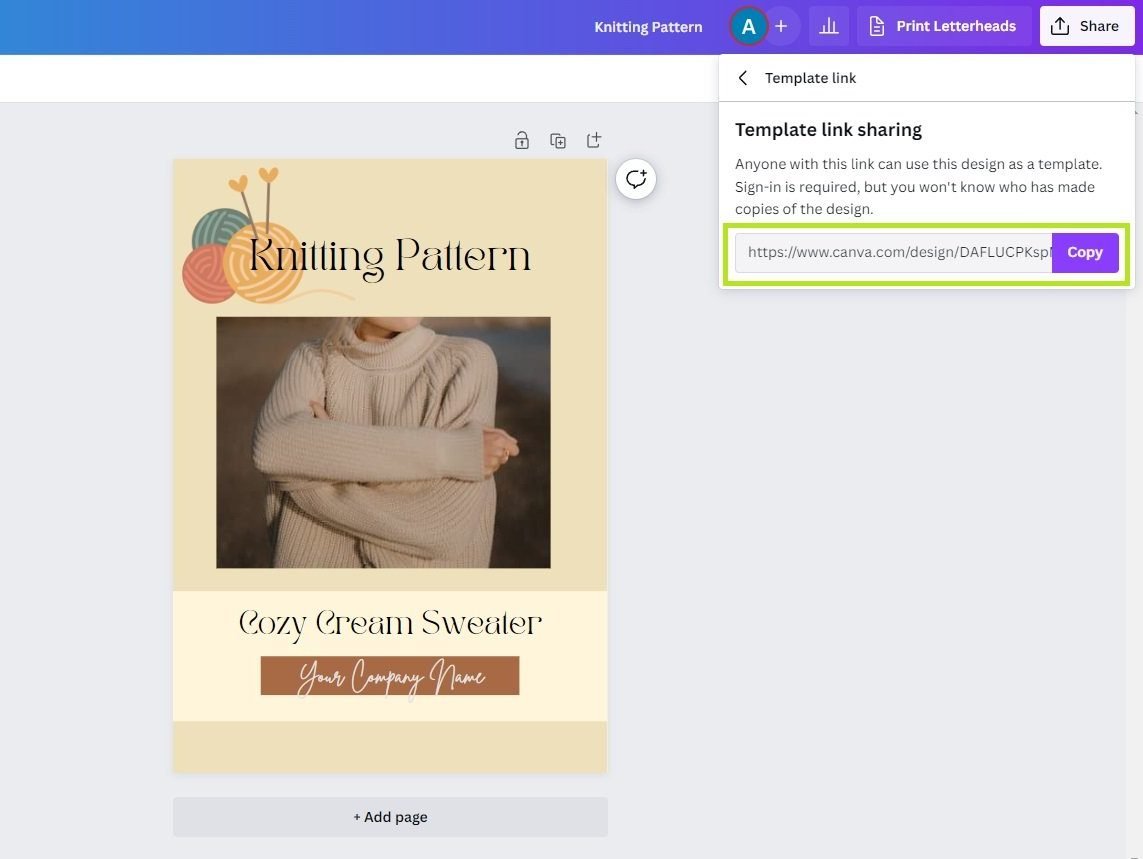
There will be a link available for you to copy. Super easy, right?
If you want to make changes to the template, you will need to go back through the process of getting the template link and update the link wherever you are selling it.

And this is what the customer will see when they click on the link!
How To Upload a Canva Template To Etsy

Etsy does not allow you to insert external links to products. Because of this, the best way to do this is to create a separate PDF file that contains the link to the template. Once you’ve created the PDF file, you can attach it to the Etsy listing which will be provided to the customer when they check out.
It doesn’t have to be super complicated. It can be one page and it can even be in a similar style to the template! Just make sure it is clear that the customer is receiving the link to the template and not the actual template so there is no confusion.

Creating Template Mockups
For the Etsy listing photos, you’ll want to create mockups that include photos of the template in use so potential customers can have a clear picture of what they are getting. You can simply download the pages you’d like to include in the mockup and upload them into Canva as a photo. Then you can create the mockups in Canva!
Adding The Template To Etsy
Adding a template to your Etsy shop is just like adding any other product listing.
Title
Create a descriptive title with some good keywords.
Product Type
Since the template is a digital product, select “Digital” for product type. This way, you will be able to upload the PDF you created.
Category
For the category, you can choose something like Design & Templates/Templates in the Part & Supplies category.
Images
Upload the mockups you created. Make sure to create several, as Etsy allows for 10 photos!
Description
This is where you can really make your product shine. Make sure to talk about who the product is for, how it is customizable, what makes it unique, and what the customer will receive when they purchase.
Tags
Make sure you fill in all 13 tags and include keywords you used in the title as well as any other keywords that are relevant.
Quantity
Since the product is digital (and completely passive once you set it up!) you can make the quantity for this listing 999.
Fill out every section with all the information you possibly can to increase your chances of being found on Etsy. Checkout this post for more tips for optimizing your Etsy listings.
You can of course sell these templates on your own website as well if you have one!
FAQs
Can you sell premade templates that are available on Canva?
No, you cannot sell pre-made templates. You will need to create your own templates to sell. For more information, read the Content licenses and using Canva for commercial purposes
What If I Change A Linked Template In Canva? Will It Update The Linked Template?
No, it will not update the linked template. The link that is provided is a copy of the template you created, meaning any changes that are made to the original copy of the template you created will not be updated in the linked template. This makes it so that customers are able to change their copy of the template but it won’t affect your personal copy of it.